
Connecting to High-Performance Computing Virtual Private Network
Users can connect to NLR's high-performance computing (HPC) systems via VPN (virtual private network).
You do not need the VPN connection if...
You are an NLR employee using an NLR device (while on-site you may connect directly; while off-site, use your existing GlobalProtect External VPN Connection).
You may need the VPN if...
- You are a non-NLR HPC user or an NLR employee using a non-NLR device.
- You need to use features such as web-based applications, X11 applications, or perform file transfers on non-Kestrel systems.
- Your organization blocks outbound SSH connections.
Requirements
A multifactor authentication token
Administrative privileges on a computer with one of the following operating systems:
- OS X version 10.10 (Yosemite) or later (10.12+ recommended)
- Windows 7 SP1 or later (Windows 10 recommended)
- Debian/Ubuntu or Redhat/CentOS Linux.
Please see the GlobalProtect Linux Documentation for Linux install instructions.
Note: NLR High-Performance Computing does not provide technical support, and you may need to seek assistance from your IT department when installing software.
Download and Install
Download and install the GlobalProtect Desktop Client for your operating system:
| Operating System | Installer |
|---|---|
| OS X | Download OS X Installer |
| Windows | Download Windows Installer |
| Linux | Download Linux Installer |
Set Up GlobalProtect
Once the GlobalProtect application is installed, a window will prompt for a portal address. Type hpc-vpn.nrel.gov
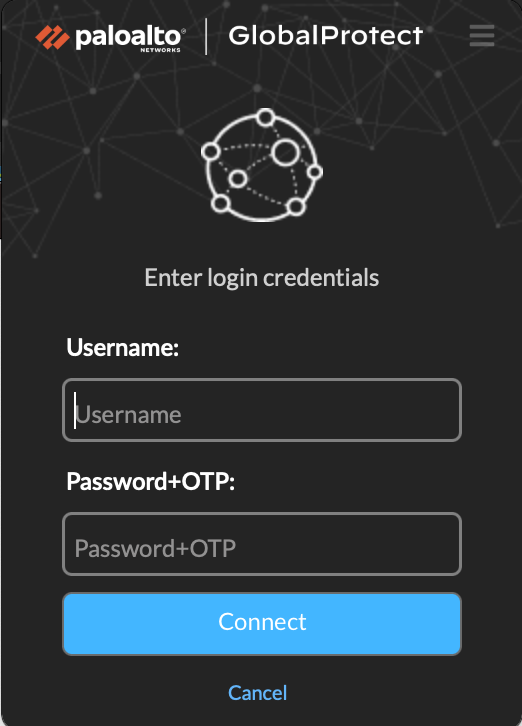
Click the “Connect” button and enter your username and the multifactor password combination.
Testing
To ensure your connection is working, start your terminal client and connect to a server such as kestrel.nrel.gov or use your web browser to connect to an internal service.
Caveats
The HPC VPN allows access to Computational Science Center resources only. While connected all network requests pass through NLR's network and specific services for your organization may be unavailable for use.
Share

Last Updated Jan. 23, 2026